
You hear about IPTV Smarters everywhere. Friends mention it, forums recommend it, and every setup video starts with it. But then you open the app and see a login screen asking for things you do not have. What is it? Where does the content come from? And why does nothing play?
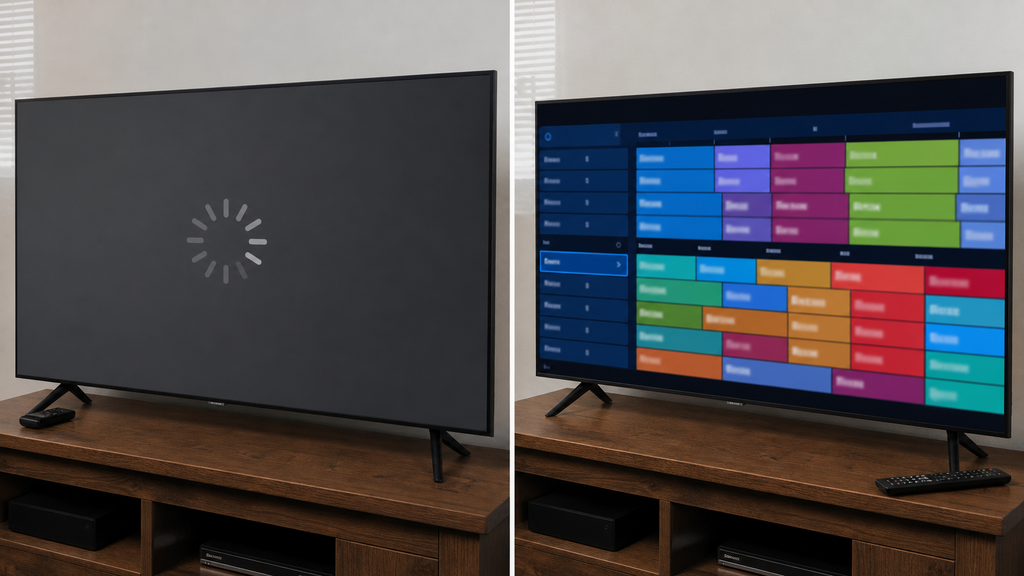
This guide clears it up. You will learn what IPTV Smarters really is, how it works, what features matter, and how to set it up on your device without the usual headaches. Picture the before and after. Before: a confusing app, a blank screen, and an error message. After: a clean channel guide, smooth playback, and a setup you fully understand.
The Short Answer
IPTV Smarters is a media player app. It does not provide channels or movies by itself, and it works like a remote control and a viewing window for content you are legally allowed to watch. To use IPTV Smarters, you need two things. You need the app on your device, and you need login details or a playlist from a provider that has the rights to the content.
Once you add those details, the app loads your channels, movies, and series into an easy menu. You can then watch on a phone, tablet, or TV. Think of it as an empty TV set. The app is the screen, and your provider supplies the shows.
What Is IPTV, and Where Does the App Fit?
IPTV stands for Internet Protocol Television. It is TV delivered over your internet connection instead of a cable or satellite signal. A provider sends streams over the internet. A player app on your device receives those streams and shows them on screen.
IPTV Smarters is one of those player apps. It organizes live channels, on demand movies, and series, and it adds helpful tools like a program guide and favorites.
The important point is the split of roles. The player is only software, while the provider owns or licenses the content. That is why understanding IPTV Smarters starts with understanding that it is a player, not a content service.
Is It Legal?
The app itself is a normal media player, and using a media player is legal. What matters is the content you load into it. If your provider has licenses for the channels and movies it sells, you are on solid ground. If a provider sells thousands of channels for a few dollars with no clear rights, you are taking a risk.
Unlicensed streams can disappear overnight, take your money, and sometimes expose your devices to malware. Streaming copyrighted content without permission can also create legal problems. Before you pay for anything, check that the provider is transparent about who they are, how they get content, and how they handle refunds and support.
The Cybersecurity and Infrastructure Security Agency offers practical advice on avoiding malicious apps and protecting your devices, which is worth a read before you install anything unfamiliar.
Key Features of the App
People like IPTV Smarters for a reason. It packs many useful tools into one clean interface.
Live TV, Movies, and Series
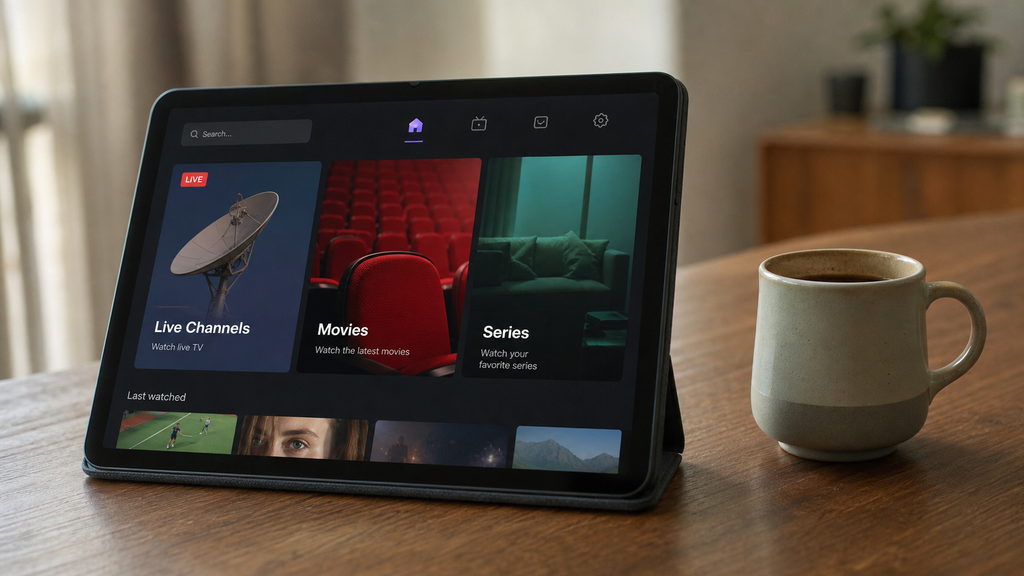
The app sorts content into clear sections. You get a live TV menu, a movies menu, and a series menu, each with categories and search. That makes browsing fast, even when your library is large.
Electronic Program Guide
The program guide, or EPG, shows what is on now and what comes next. It looks like a classic TV guide, with channels in rows and shows in blocks. The EPG only works if your provider supplies the data, so some channels may show no schedule.
Favorites and Recent Channels
You can mark channels as favorites and jump to them in one tap. The app also keeps a list of recently watched channels. That saves time when you flip between a handful of regulars.
Catch Up and Recording Support
Some providers offer catch up or archive features. If yours does, the app lets you watch recent shows you missed. Recording features depend on the version of the app and the provider, so check what is supported before you rely on them.
Parental Controls
You can lock categories or channels behind a PIN. This is helpful in homes with kids. Set the PIN before you hand the remote to anyone under 12.
External Player Support
Many versions let you choose another video player, such as VLC or MX Player. This can help if a stream plays poorly in the built in player.
Multi Screen and Multiple Users
Some versions support multi screen viewing, where you watch several channels at once. They also allow multiple user profiles so family members keep separate lists. The number of screens and profiles depends on both the app version and the provider.
Subtitles and Audio Tracks
The player lets you switch subtitles and audio tracks when the stream includes them. That is great for multi language households.
Casting and Themes
You can often cast to a TV with a compatible device, and some versions let you change themes and layouts. Small touches like these make daily use more comfortable.
When you put these features together, IPTV Smarters feels much closer to a full TV experience than a simple video player.
Versions and Supported Devices
There are several versions of the app, and names can change over time. Always download from an official store and read the listing carefully. Common platforms include Android phones and tablets, Android TV, Amazon Fire TV, and iPhone and iPad. Other versions or similar players exist for some smart TVs and streaming boxes.
Check which version your device supports before you start. Smart TV brands differ, and some require different apps from the TV store. A rule of thumb: use the official app store for your device whenever you can. It reduces the risk of tampered files.
If your device does not list the app in its store, look for a recognized alternative player rather than downloading random files from the web.
What You Need Before You Start
A little prep makes setup smooth. Here is what to have ready. First, a stable internet connection. HD streams usually need about 5 to 10 megabits per second per stream, and 4K needs around 25 megabits per second.
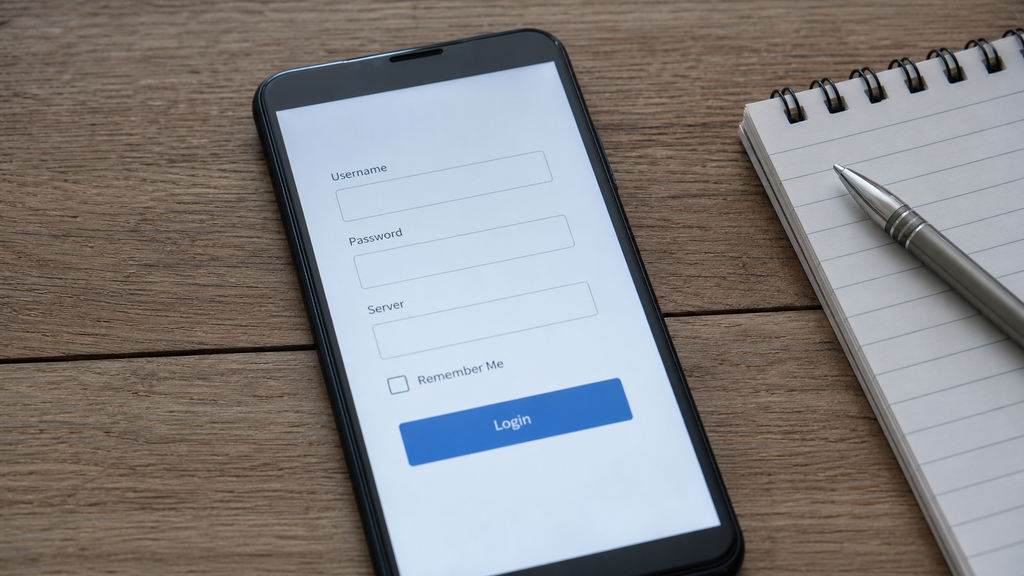
Second, a compatible device with enough storage and an updated operating system. Old devices cause lag and crashes. Third, login details from your provider. These usually include a username, password, and server URL, or a playlist link in M3U format.
Fourth, a few minutes of patience. The first load can take a while because the app downloads your channel list and guide data. If you are still choosing a provider, you can browse options and plans at The Best USA IPTV and compare them with the checklist in this guide. Always confirm licensing, support, and refund terms before you pay for any service.
Step by Step Setup
The exact labels vary by version, but the basic flow stays the same. Follow these steps to set up IPTV Smarters on most devices.
Step One: Install the App
Open the official store on your device. On Android, that is Google Play, on iPhone and iPad it is the App Store, and on Fire TV it is the Amazon Appstore. Search for the app, check the developer name, and install it. Avoid copycat apps with similar names.
Step Two: Open and Accept the Terms
Launch the app and accept the terms and permissions it requests. Allow only what it truly needs, such as network access.
Step Three: Choose a Login Method
You will see options for adding a user. Common ones include logging in with an Xtream Codes API style login, loading a playlist or file, or adding a URL.
Choose the one that matches the details your provider gave you. If you are not sure, ask your provider which option to use.
Step Four: Enter Your Details
For an API style login, enter a name for the profile, your username, your password, and the server URL. Type carefully, because one wrong character causes a login error. For a playlist, paste the link or choose the file, then give it a name.
Step Five: Add the User and Wait
Tap the button to add the user. The app will connect, verify your details, and download your channel list and guide. This can take from a few seconds to a few minutes, depending on library size and internet speed.
Step Six: Explore and Customize
Once loaded, open Live TV, Movies, or Series. Mark favorites, set parental controls, and adjust subtitle and player settings. Spend a few minutes in the settings menu. A little tuning can improve performance and comfort.
Following these steps, most people get IPTV Smarters running in under ten minutes.
How the Technology Works Behind the Scenes
When you press play, a lot happens quickly. The app sends a request to your provider’s server asking for a specific stream.
The server sends the video in small chunks over the internet. The app collects these chunks, decodes them, and shows them on your screen.
If your internet slows down, the app may drop picture quality or pause to refill its buffer. That is the little spinning wheel everyone dislikes.
The channel list, logos, and guide data come from separate files or API calls. If any of those are slow or broken, you may see missing logos or an empty guide even though video works.
Understanding this flow helps you troubleshoot. Problems usually come from the internet, the provider, or the device, rarely from the app alone.
Tips for Smooth Playback
A few small habits make a big difference. They cost nothing and solve most complaints.
Use a wired ethernet connection for your main TV if you can. WiFi is fine, but it is more sensitive to distance and interference.
Place your router in a central, open spot. Walls, mirrors, and appliances weaken the signal.
Restart your router and streaming device once in a while. It clears glitches and frees memory.
Close other heavy apps and downloads while you stream. Large downloads can steal bandwidth from your video.
Keep the app and your device software updated. Updates often fix bugs and improve stability.
If you use IPTV Smarters on an older device, consider upgrading to a modern streaming box. Faster hardware makes menus snappier and playback smoother.
Troubleshooting Common Problems
Even good setups hit a snag sometimes. Here are the most common problems and what to try.
Login Failed or Invalid Credentials
Check for typos in the username, password, and URL. Make sure there are no extra spaces and that you used the correct login method.
If it still fails, contact your provider and confirm that your subscription is active.
No Channels or Empty Lists
Wait a bit longer for the first load, then refresh the list from the settings menu. Large libraries can take time.
If the list stays empty, the problem may be on the provider side.
Buffering and Freezing
Test your internet speed and move closer to the router. Try a wired connection, close other apps, and restart the device.
If only one channel buffers, it may be a problem with that stream.
EPG Not Loading
The guide depends on provider data. Try refreshing the guide, checking the time zone setting, and making sure your device clock is correct.
Black Screen or No Audio
Try another channel, switch the player in settings, or change the audio track. Restarting the app often fixes this.
App Crashes
Update the app, clear its cache, and restart the device. As a last resort, uninstall and reinstall from the official store.
Most issues come down to the same three suspects: your connection, your login details, or the provider. A calm, step by step check solves the vast majority of problems with IPTV Smarters.
Security and Privacy Basics
Any app that connects to the internet deserves a little caution. A few habits keep you safe.
Download only from official stores and trusted sources. Fake versions of popular apps are a common way malware spreads.
Use strong, unique passwords for your provider account. Do not reuse the same password across services.
Pay by credit card when possible, because you can dispute charges. Avoid gift cards, wire transfers, and other payments that offer no protection.
Keep your device operating system updated. Security patches close holes that attackers like to use.
Be wary of providers that ask for unusual permissions or personal details. A legitimate service only needs what it takes to run your subscription.
The Federal Trade Commission also publishes tips on spotting online scams, including subscription traps and fake apps.
Real World Use Cases
Let us look at how different people use the app. These are simple examples to help you picture your own setup.
Example one is a family living room. They install the app on a Fire TV, create profiles for each person, and set a PIN on adult categories.
Example two is a commuter. They use the app on a phone during the train ride and switch to the TV at home with the same login.
Example three is a sports fan. They use the guide to track game times and keep favorite channels at the top of the list.
In each case, IPTV Smarters acts as the control center, and the quality of the experience depends on the provider and the internet connection.
How It Compares With Other Players
IPTV Smarters is not the only player. Others include VLC, TiviMate on Android TV, and various smart TV apps.
VLC is a free, flexible player that handles many formats, but it has a more basic interface for channel lists. TiviMate is popular for its polished guide and Android TV focus.
Smart TV apps are often convenient, but their features vary by brand. Some are simple and some are powerful.
What sets IPTV Smarters apart is its wide device support and its balance of features. It is a solid choice if you want one familiar app across several screens.
Try more than one if you can. The best player is the one that feels fast and comfortable on your device.
Common Mistakes to Avoid
A few slip ups show up again and again. The biggest is expecting the app to include channels by itself.
Another is downloading unofficial versions from random sites. That is how many people end up with malware or broken apps.
Typing the login details wrong is another classic. Copy and paste when you can, and double check the server URL.
Ignoring internet speed is a common cause of buffering. Great content cannot fix a weak connection.
Paying for a year upfront with an unknown provider is risky. Start monthly until you trust the service.
Skipping updates can also cause trouble. Old versions may have bugs or stop working with new servers.
Avoiding these mistakes makes IPTV Smarters far easier to enjoy.
A Quick Setup Checklist
Use this before you start. Confirm that your provider is licensed and has clear terms.
Test your internet speed and check your device storage and updates. Download the app from the official store.
Gather your username, password, and server URL or playlist link. Enter the details carefully and wait for the first load.
Set favorites, a parental PIN, and your preferred player. Test live TV, a movie, and the guide.
Tick those boxes and you will be ahead of most beginners.
What a Good Result Looks Like
Let us go back to that before and after. After a clean setup, the app opens quickly and the menu loads without errors.
Channels start fast, the guide shows what is on, and the picture stays steady. Favorites are one tap away, and the kids cannot stumble into adult content.
You know where the content comes from, how to fix common problems, and who to contact if something breaks. That is the real goal.
Final Thoughts
So, what is IPTV Smarters? It is a flexible, widely supported player app that turns your login details or playlist into a tidy TV experience.
Remember that IPTV Smarters is only half of the picture. The other half is a licensed, reliable provider and a strong internet connection.
Start with the official app, set it up step by step, and keep your security habits sharp. Those simple moves beat any flashy trick.
If something goes wrong, work through the checklist above before you panic. Most problems have simple fixes.
Set it up right, stay safe, and enjoy the show.